본문 바로가기
Unreal Engine/언리얼-ROS-Physical 통합 프로젝트

[UnrealRobotics: SO-101] (5) SO-ARM-101 부품 검증, 모터 연결 확인

by 테크앤아트 2026. 4. 10.
728x90
반응형


부품 검증

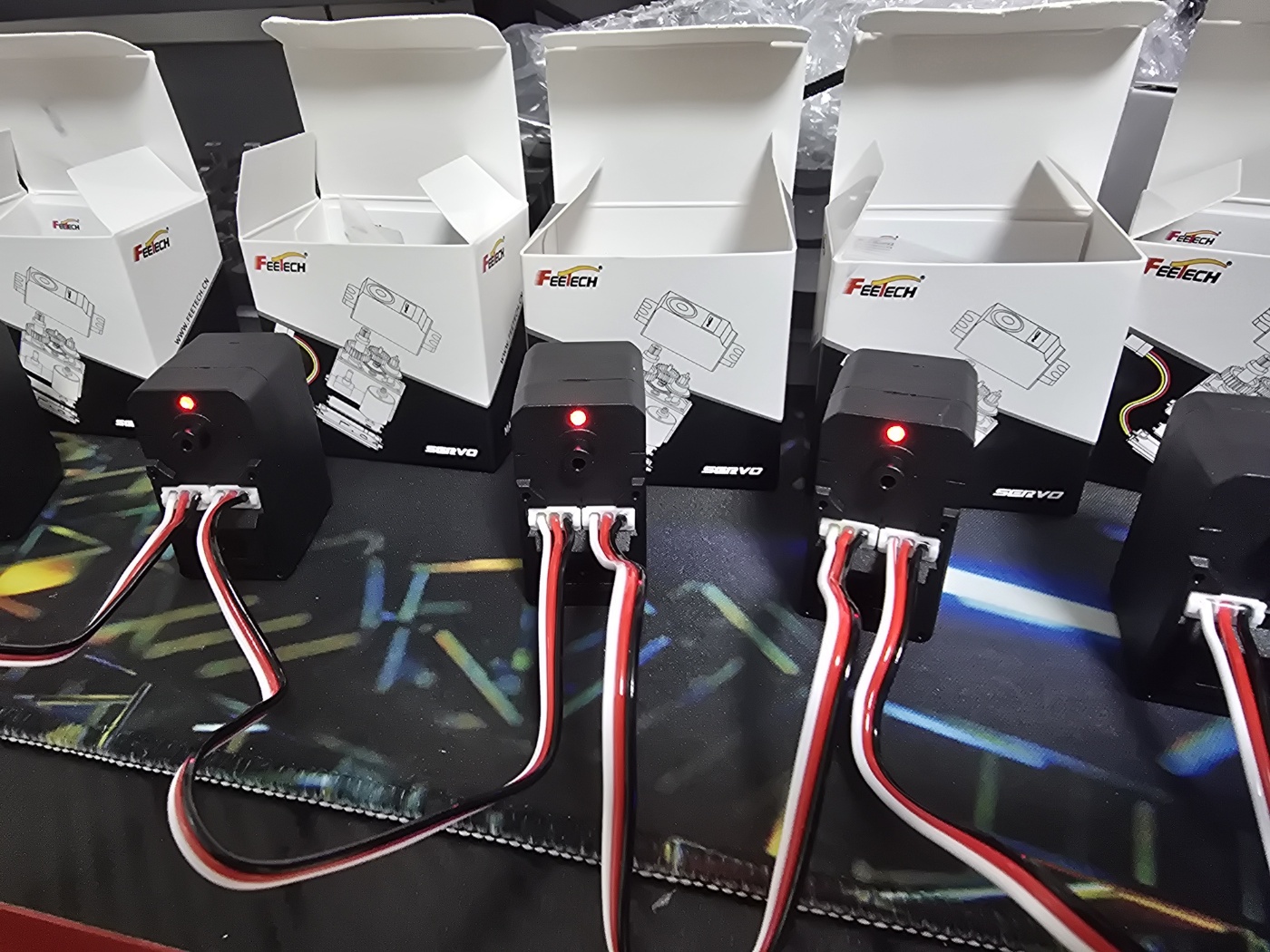
주문 했던 SO-ARM-101 로봇의 부품이 도착하여 부품 검증부터 해보도록 한다.

국내 사업체에서 부품을 구매했으며 포함된 부품은 아래와 같다.

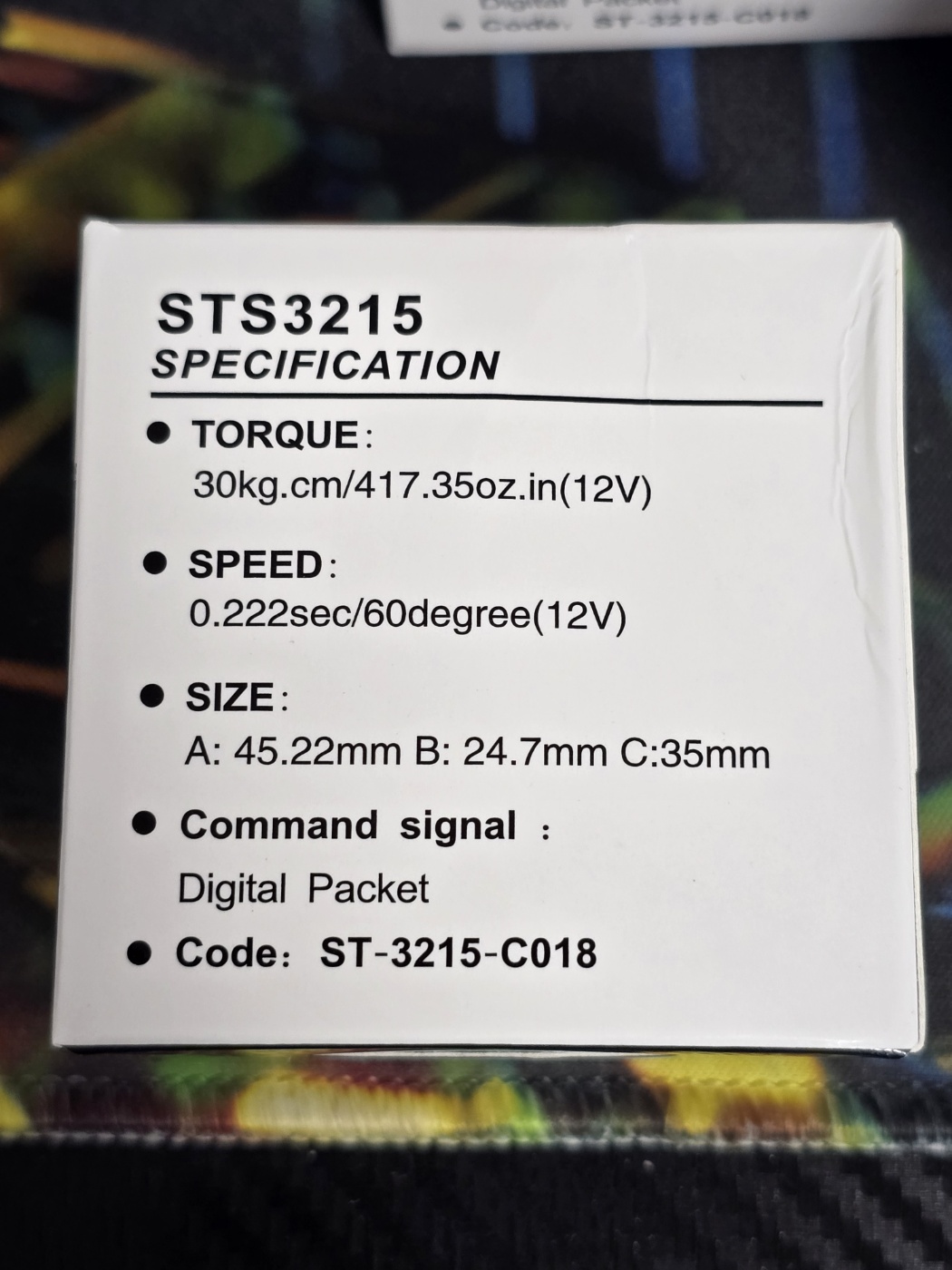
  • 12V, 30kg.cm STS3215-C018 모터 6개
  • 12V 직류 전원 1개
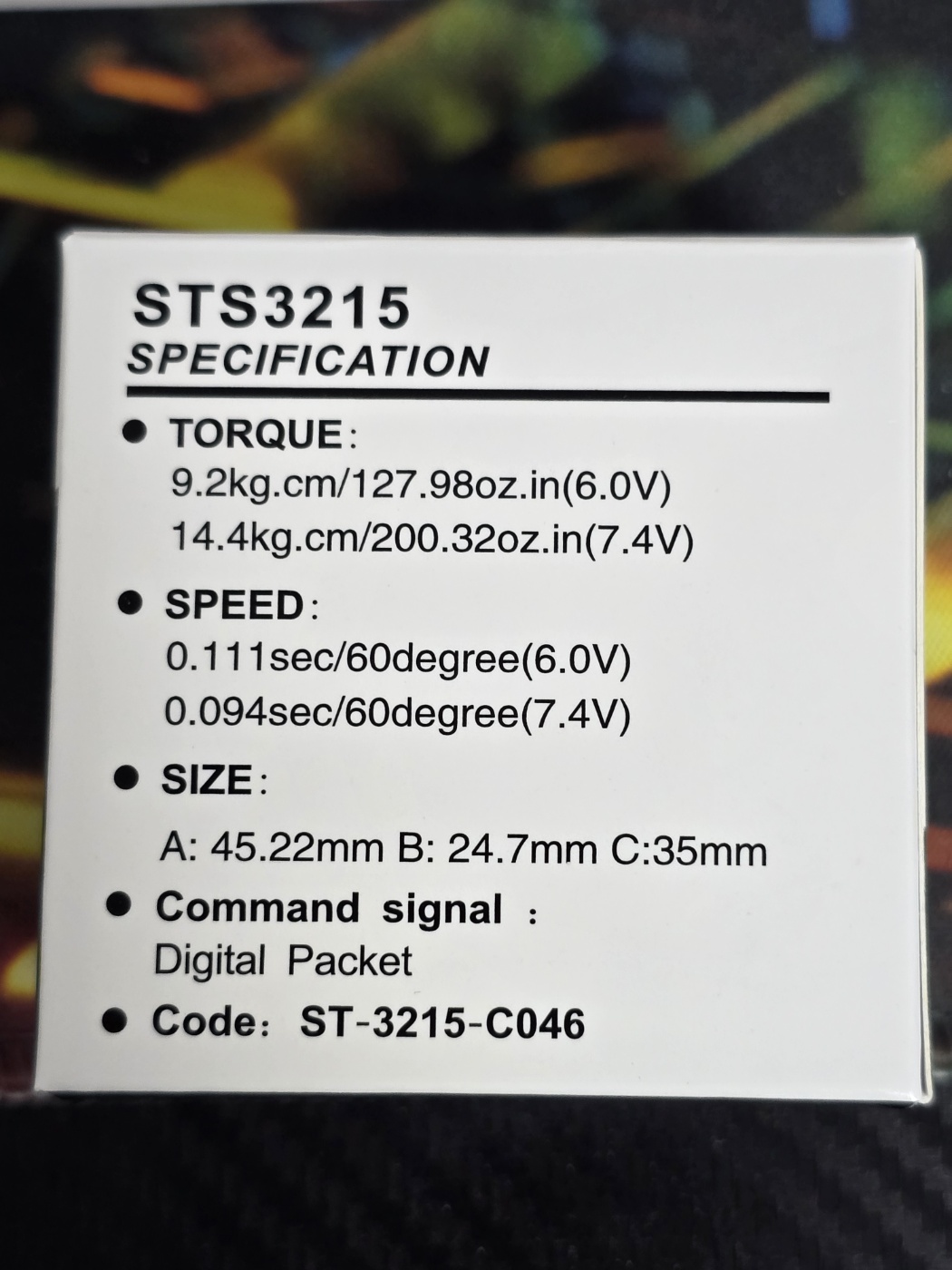
  • 7.4V, 14.4kg.cm STS3215-C046 모터 6개
  • 5V 직류 전원 1개
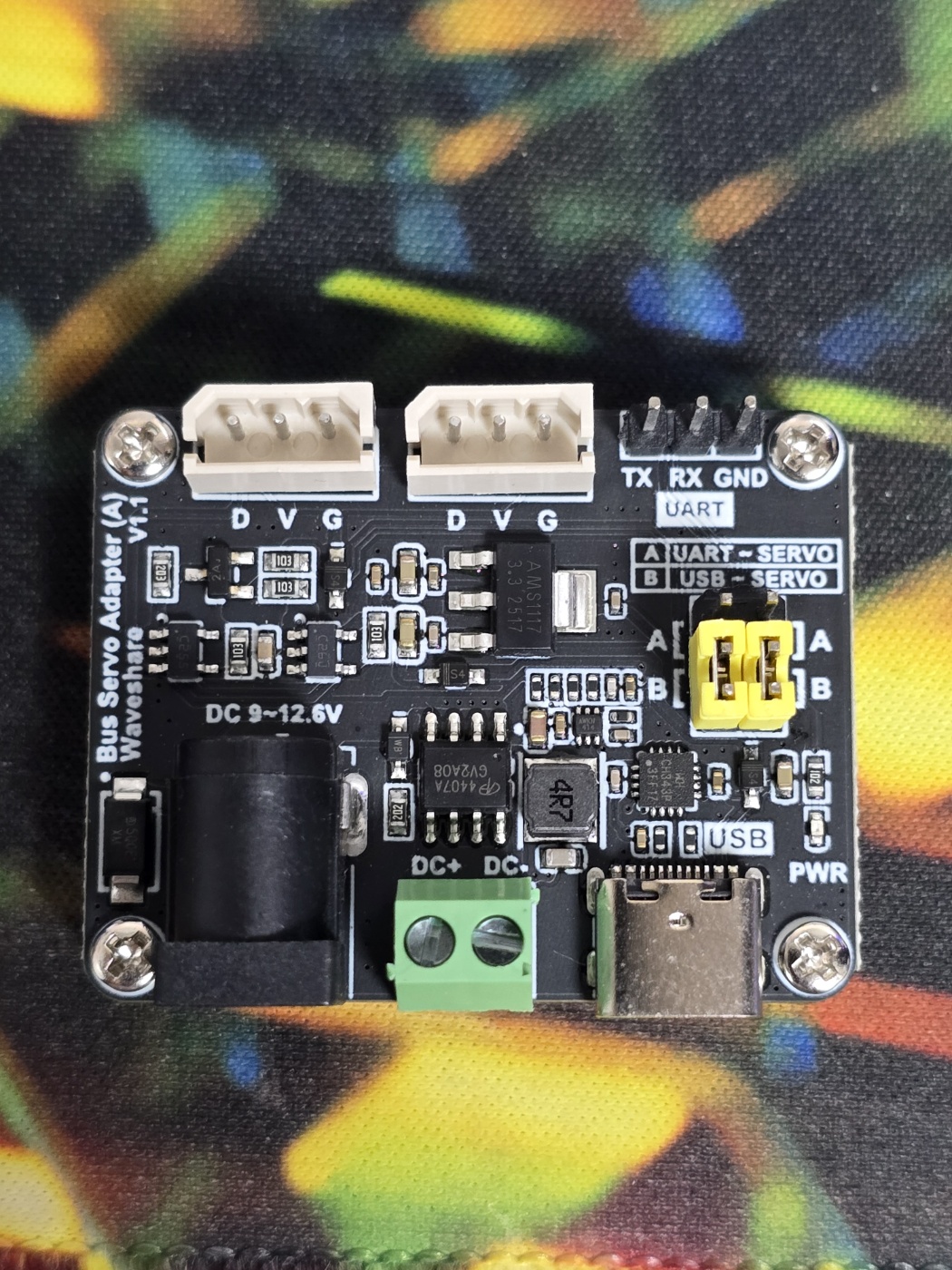
  • Waveshare 모터 드라이버 2개
  • A to C USB 선 2개
  • 나사 및 드라이버


설치 및 조립은 공식 허깅페이스 사이트를 참고할 수 있다.

https://huggingface.co/docs/lerobot/so101?example=Linux


SO-101 · Hugging Face

We’re on a journey to advance and democratize artificial intelligence through open source and open science.

huggingface.co

https://huggingface.co/docs/lerobot/installation


Installation · Hugging Face

We’re on a journey to advance and democratize artificial intelligence through open source and open science.

huggingface.co


0단계: 하드웨어 체크

  • STS3215 12V, 7.4V 사양 확인
  • Waveshare 보드 점퍼 2개가 B 채널 (USB)에 위치
  • 전원 인가 후 보드 전원 LED 점등
  • USB를 Windows에 연결 후 Waveshare 보드가 COM 포트로 인식되는지 장치관리자에서 확인


1단계: usbipd-win으로 Waveshare 보드를 WSL2에 포워딩

*Follower 기준으로 직류전원과 모터, USB를 먼저 세팅한다.

Windows PowerShell을 장치관리자로 연다.

# usbipd 설치 (안 깔려있으면)
winget install --interactive --exact dorssel.usbipd-win

# 장치 목록에서 Waveshare 보드 busid 확인
usbipd list
# Waveshare 보드는 보통 "USB Serial Converter" 또는 "CH340" 계열로 잡힘

# 공유 가능 상태로 등록 (최초 1회)
usbipd bind --busid <X-Y>

# WSL2에 연결
usbipd attach --wsl --busid <X-Y>


WSL2에서 확인

ls /dev/ttyACM* /dev/ttyUSB* 2>/dev/null
# /dev/ttyACM0 또는 /dev/ttyUSB0 중 하나로 잡혀야 함

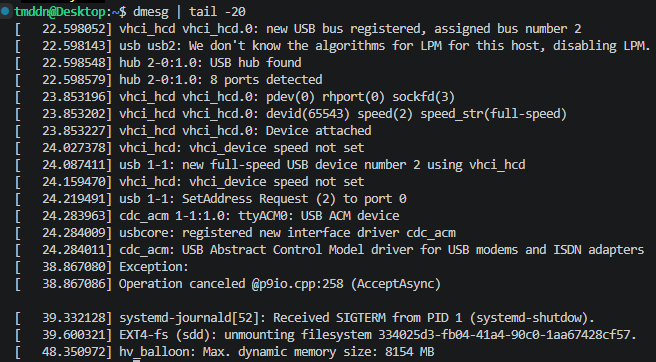
dmesg | tail -20
# "ch341-uart converter now attached to ttyUSB0" 같은 라인 있으면 OK


usbipd attach는 WSL2 재시작하면 풀려서 매번 다시 해야하는데 PowerShell에서 함수 등록해서 번거로움을 줄일 수 있다.

PowerShell 실행
New-Item -ItemType File -Path $PROFILE -Force
notepad $PROFILE​


열린 메모장에 함수 추가

function Attach-UsbToWsl {
    param(
        [Parameter(Mandatory=$true)]
        [string]$BusId,
        [string]$Name = $BusId
    )
    $device = usbipd list | Select-String $BusId
    if (-not $device) {
        Write-Host "[$Name] Device $BusId not found. Is it plugged in?" -ForegroundColor Red
        return
    }
    if ($device -match "Not shared") {
        Write-Host "[$Name] Binding $BusId (one-time, requires admin)..." -ForegroundColor Yellow
        usbipd bind --busid $BusId
    }
    if ($device -match "Attached") {
        Write-Host "[$Name] $BusId is already attached to WSL." -ForegroundColor Green
        return
    }
    usbipd attach --wsl --busid $BusId
    Write-Host "[$Name] Attached $BusId to WSL." -ForegroundColor Green
}

function Attach-Follower { Attach-UsbToWsl -BusId "1-7" -Name "Follower" }	# 실제 BUSID로 수정
function Attach-Leader   { Attach-UsbToWsl -BusId "3-2" -Name "Leader"   }	# 실제 BUSID로 수정
function Attach-Both     { Attach-Follower; Attach-Leader }

메모장 닫고 PowerShell에서 프로필 실행
. $PROFILE​


이제 아래 명령어를 실행하면 연결되었다는 문구가 출력된다. (하나 또는 둘 다)
Attach-Follower
Attach-Leader
Attach-Both​


2단계: WSL2에 LeRobot 설치

목표: WSL2의 conda 환경에 LeRobot + Feetech SDK를 깔아서 lerobot-setup-motors 같은 CLI를 쓸 수 있게 만드는 것.

먼저 conda(Miniforge)가 이미 깔려있는지 확인


(1) Miniforge 설치 여부 확인

WSL2 터미널에서

conda --version


설치가 안되어 있다면 설치

cd ~
wget "https://github.com/conda-forge/miniforge/releases/latest/download/Miniforge3-$(uname)-$(uname -m).sh"
bash Miniforge3-$(uname)-$(uname -m).sh


설치 끝나면 셸을 새로 시작

exec bash


프롬프트 앞에 (base)가 붙으면 성공


버전 확인 완료


(2) conda 환경 생성

conda create -y -n lerobot python=3.12


끝나면 활성화. 프롬프트 앞에 (base)였던 게 (lerobot)으로 바뀌면 성공.

conda activate lerobot


파이썬 버전 확인

python --version


(3) ffmpeg 설치 (conda-forge)

LeRobot은 데이터셋 비디오 인코딩에 ffmpeg + libsvtav1을 쓰는데, conda-forge 빌드가 libsvtav1 포함된 버전이라 가장 편하다. 모터 세팅 단계에서는 ffmpeg이 직접 필요하진 않지만, 나중에 텔레오퍼레이션/데이터 수집할 때 필요할 수 있음.


(lerobot) 환경 활성화된 상태에서

conda install -y ffmpeg -c conda-forge


설치 끝나면 확인. ffmpeg version 7.x 또는 8.x가 찍히면 성공.

ffmpeg -version | head -1


(4) LeRobot clone + Feetech extra 설치

SO-101은 Feetech STS3215 서보를 쓰니까 feetech extra가 필요함. editable 모드(-e)로 설치해두면 나중에 소스 수정할 일이 생겨도 재설치 없이 바로 반영된다.


(lerobot) 환경 활성화된 상태에서 설치

cd ~
git clone https://github.com/huggingface/lerobot.git
cd lerobot
pip install -e ".[feetech]"


오류 없이 잘 됐으면 넘어간다.


3단계: lerobot-find-port로 포트 확정

포트 찾기

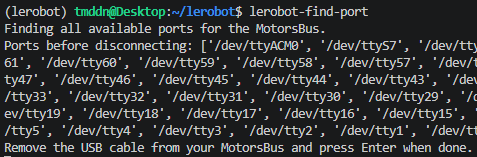
lerobot-find-port


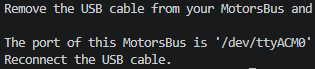
이 상태에서 USB를 뽑고 엔터를 누른다. 자동으로 없어진 포트를 찾아줌.


USB를 연결하면 WSL과 연결이 끊기기 때문에 다시 연결한다. 아까 함수를 만들어놨기 때문에 PowerShell에서 Attach-Follower를 실행한다.


WSL에서도 다시 연결 된 것 확인 완료.


포트 확정 완료. Follower 보드 = /dev/ttyACM0


4단계: lerobot-setup-motors로 Follower 모터 6개 ID/baudrate 설정 및 검증

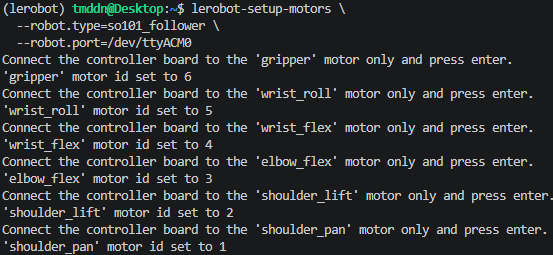
공장 출고 상태의 STS3215 모터들은 전부 같은 기본 ID로 설정되어 있어서, 데이지 체인으로 연결하기 전에 하나씩 보드에 물리적으로 연결해가며 각각 ID 1~6을 지정해야 한다.


(1) 시작 전 준비


  • Follower 보드의 12V 어댑터 연결 상태 유지
  • Follower 보드의 USB 케이블 Windows 연결 상태 유지 (/dev/ttyACM0)
  • 모터 6개는 아직 하나도 보드에 연결하지 마 — 스크립트가 "첫 번째 모터를 연결하라"고 할 때부터 시작
  • 3-pin 케이블 한 개 준비


(2) 스크립트 실행

lerobot-setup-motors \
  --robot.type=so101_follower \
  --robot.port=/dev/ttyACM0


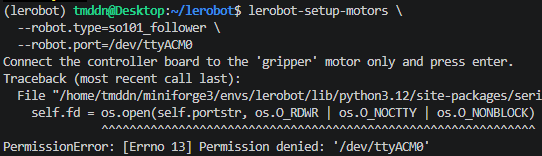
Linux dialout 권한 문제 발생


유저를 dialout 그룹에 추가
sudo usermod -aG dialout $USER​


Windows PowerShell에서 wsl--shutdown 완전히 닫고 다시 WSL2 열기
1. WSL 터미널 다 닫기
2. PowerShell에서 wsl --shutdown
3. PowerShell에서 Attach-Follower (다시 attach, 경우에 따라서 detach 후 다시 attach)
4. WSL 터미널 새로 열기
5. conda activate lerobot
6. ls /dev/ttyACM0 확인
7. groups 확인 — dialout이 보여야 함
8. lerobot-setup-motors 재실행


모든 Follower 모터 세팅 완료.


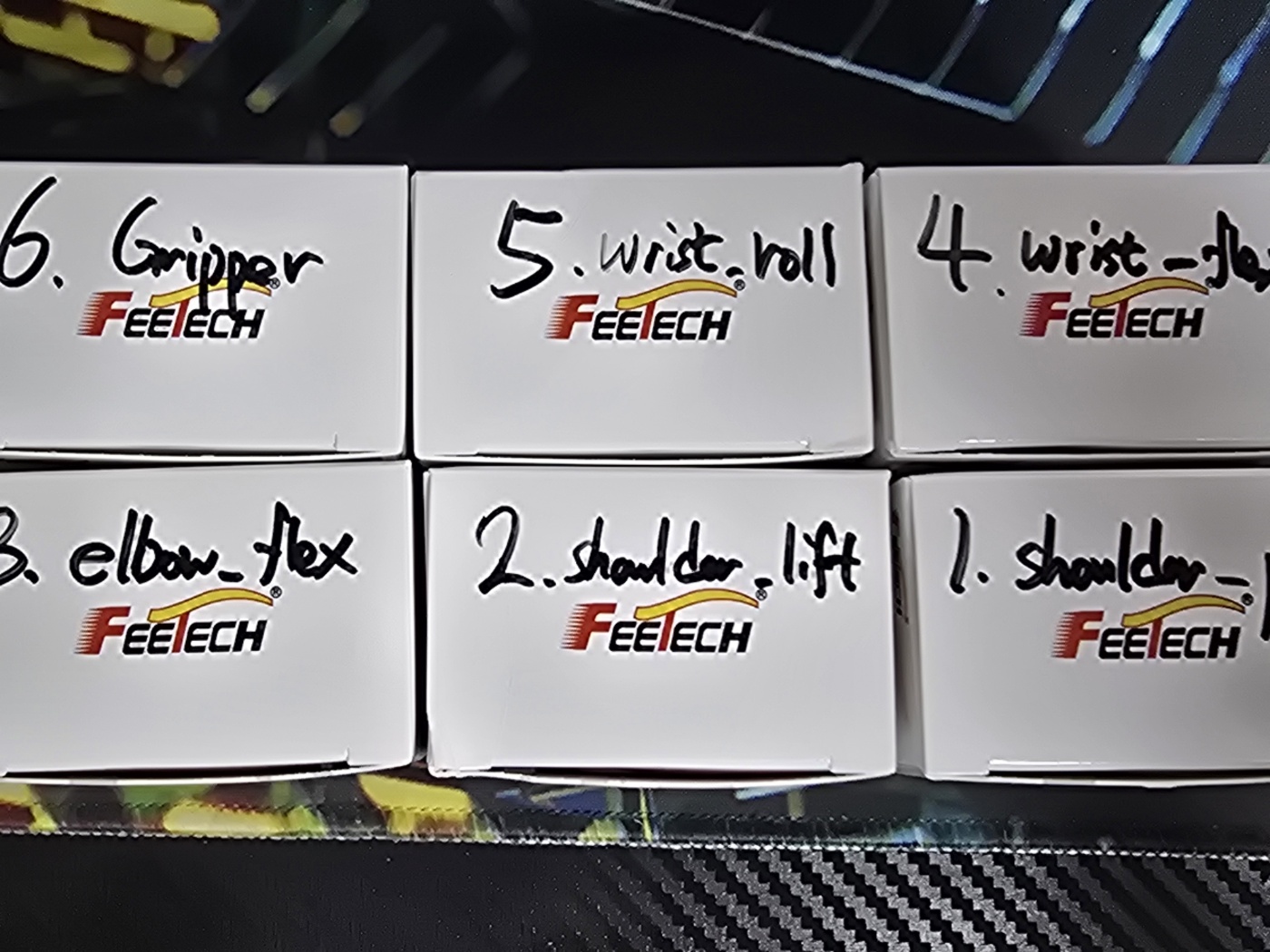
세팅된 모터는 조립 할때 헷갈리지 않게 주기를 해야한다.


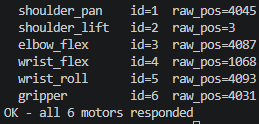
(3) Follower 6개 모터 Present Position 읽기 (검증용)

데이지 체인 연결 (순서 상관 없음)

Waveshare 보드 ─── 모터A ─── 모터B ─── 모터C ─── 모터D ─── 모터E ─── 모터F


테스트 스크립트 실행 -WSL 터미널에서 실행

python - <<'EOF'
from lerobot.robots.so_follower import SO101Follower, SO101FollowerConfig

cfg = SO101FollowerConfig(port="/dev/ttyACM0", id="sanity_test")
robot = SO101Follower(cfg)
robot.connect(calibrate=False)

# bus 레벨에서 raw read (normalize 우회)
raw = robot.bus.sync_read("Present_Position", normalize=False)
for name, val in raw.items():
    print(f"  {name:15s} id={robot.bus.motors[name].id}  raw_pos={val}")

robot.disconnect()
print("OK - all 6 motors responded")
EOF

값이 잘 나왔고, 성공했다.


5단계: Leader 모터 6개 ID/baudrate 설정 및 검증

이전 Follower 전원, 보드, 모터는 빼고 Leader의 보드에 5V 직류 전원 연결, USB 연결


(1) 새 busid 확인

Windows PowerShell에서

usbipd list

이미 연결 한 적이 있어서 Shared 상태.


이미 만들어 놓은 함수로 연결

Attached 연결 확인


혹시 이상이 있다면 최초 1회만 관리자 PowerShell에서 leader도 bind가 필요함.
usbipd bind --busid 3-2 # leader의 실제 busid​


(3) WSL2에서 확인

ls /dev/ttyACM*

이전에 Follower가 쓰던 포트가 빠진 후 Leader를 연결해서 같은 포트가 잡힌다.


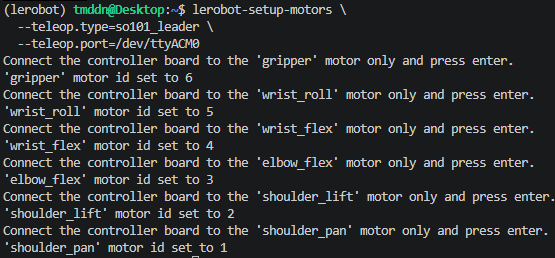
(4) lerobot-setup-motors 실행 - Leader

lerobot-setup-motors \
  --teleop.type=so101_leader \
  --teleop.port=/dev/ttyACM0


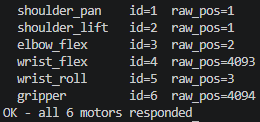
(5) Leader 6개 모터 Present Position 읽기 (검증용)

데이지 체인 연결 (순서 상관 없음)

Waveshare 보드 ─── 모터A ─── 모터B ─── 모터C ─── 모터D ─── 모터E ─── 모터F


테스트 스크립트 실행 -WSL 터미널에서 실행

python - <<'EOF'
from lerobot.teleoperators.so_leader import SO101Leader, SO101LeaderConfig

cfg = SO101LeaderConfig(port="/dev/ttyACM0", id="sanity_test_leader")
leader = SO101Leader(cfg)
leader.connect(calibrate=False)

raw = leader.bus.sync_read("Present_Position", normalize=False)
for name, val in raw.items():
    print(f"  {name:15s} id={leader.bus.motors[name].id}  raw_pos={val}")

leader.disconnect()
print("OK - all 6 motors responded")
EOF

잘 연결 되었다.


완료된 체크리스트


  • ✅ 하드웨어 육안 확인: Follower 12V 모터 6개, Leader 7.4V 모터 6개
  • ✅ Waveshare 보드 2개 점퍼 B 채널(USB)
  • ✅ 전원: Follower 12V, Leader 5V 어댑터 (교차 금지 확인)
  • ✅ usbipd-win WSL2 포워딩 (프로필 함수 Attach-Follower / Attach-Leader / Attach-Both)
  • ✅ WSL2에 Miniforge + conda env lerobot (Python 3.12) + ffmpeg
  • ✅ LeRobot editable 설치 + Feetech extra
  • ✅ Follower: lerobot-setup-motors --robot.type=so101_follower ID 1~6 할당
  • ✅ Follower: 데이지 체인 sanity check (6개 응답)
  • ✅ Leader: lerobot-setup-motors --teleop.type=so101_leader ID 1~6 할당
  • ✅ Leader: 데이지 체인 sanity check (6개 응답)


728x90
반응형