개요
Unreal을 이용한 차량 Configurator 프로젝트를 위해 3D CAD import부터 Matarial Variant, Ninite, Lumen, 최적화까지의 과정을 기록한다. 3D CAD의 Unreal 통합 Visualization 과정.
1. 엔진 설치, 프로젝트 세팅
최신 버전인 5.8 버전은 마켓 플레이스 에셋 호환의 문제가 있을 수 있기 때문에 비교적 최신 버전인 5.6버전을 설치한다.

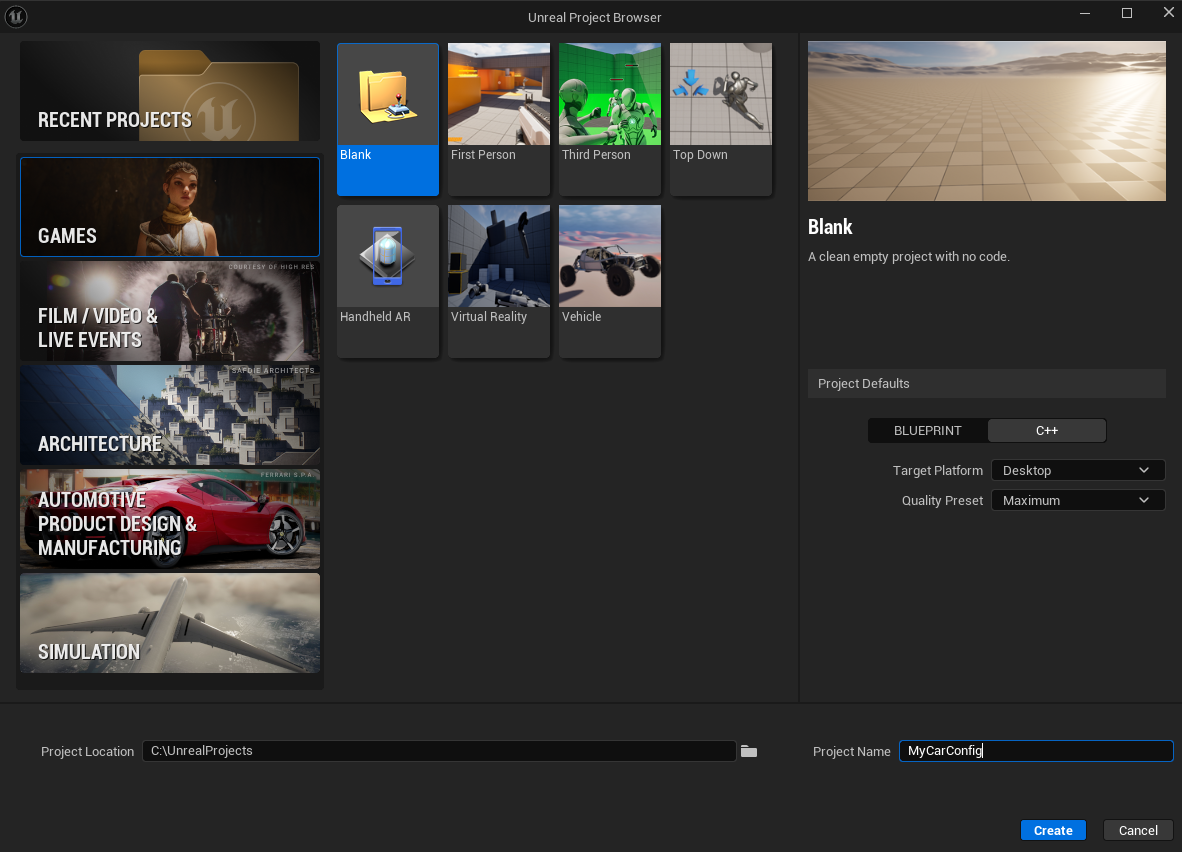
설치 후 프로젝트 생성은 [GAMES] - [Blank]에서 C++로 설정했다.
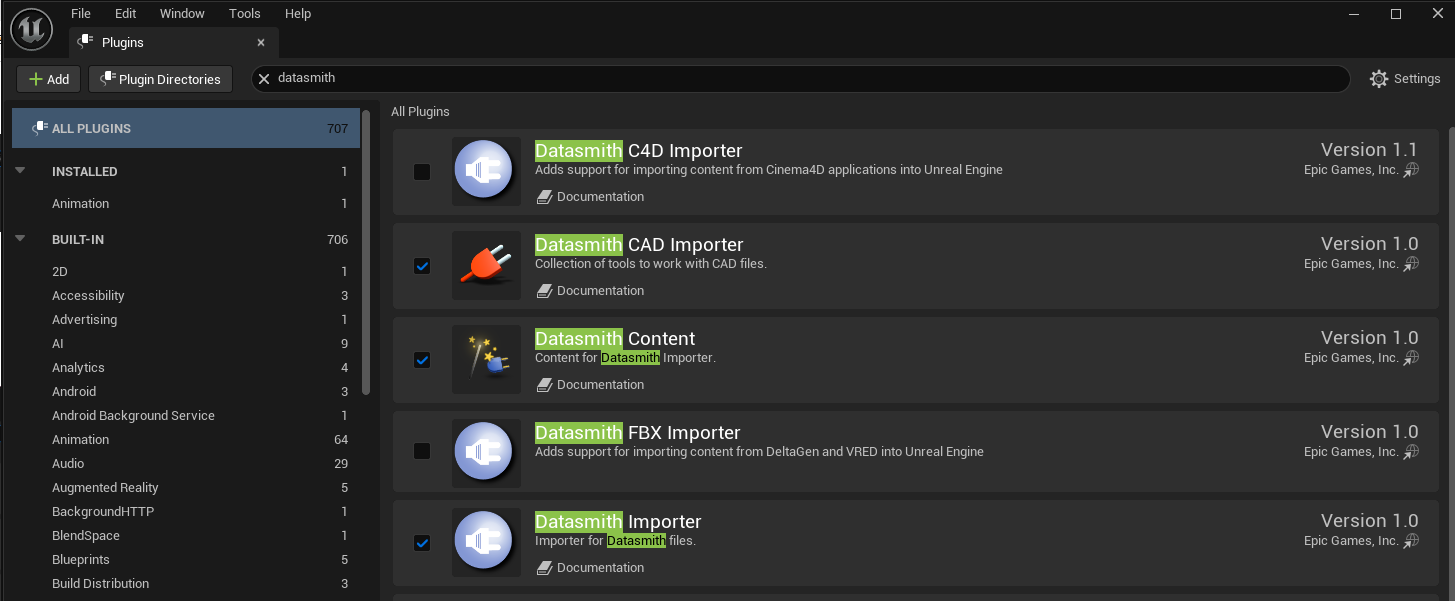
[Edit] - [Plugins] 메뉴로 들어가서 필요한 플러그인을 설치한다.
- Datasmith Importer + Datasmith CAD Importer
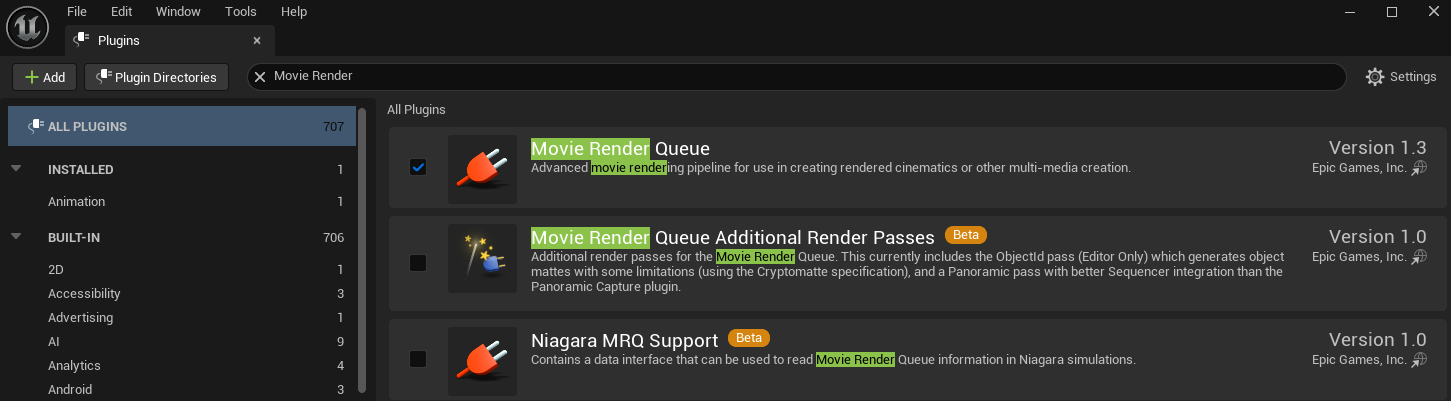
- Movie Render Queue (렌더용)
- HDRI Backdrop

2. 차량 CAD 모델 Import
이제 차량을 import 한다.
CAD 차량은 아래의 링크에서 다운로드 받았다.
https://grabcad.com/library/audi-r8-v10-4
Plugin을 설치했고 재시작 했다면 Quick Add 아이콘에 [Datasmith]가 생긴 것을 볼 수 있고, 파일을 Import 한다.

[Import Options]에서는 나중에 Lumen을 쓸 거기 때문에 [Generate Lightmap UVs]는 껐고, 곡면 품질 향상을 위해서 [Chord Tolerance]는 0.2에서 0.1cm로 줄였다.
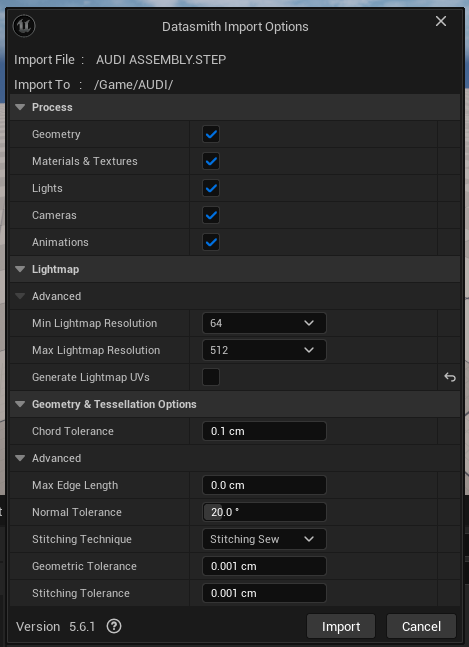
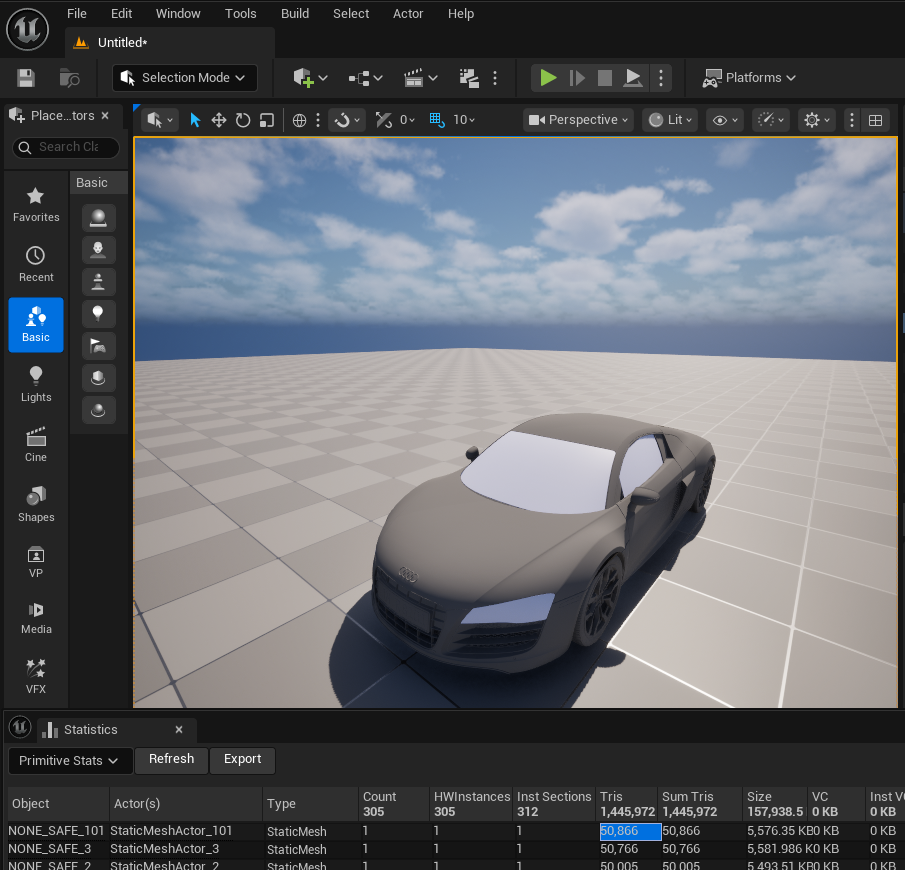

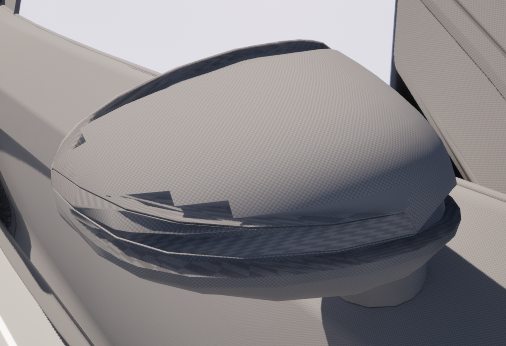
이렇게 옵션을 설정했을 때 총 Tris 수는 144만 정도. 곡선 디테일 살짝 부족한 부분 + 사이드 미러 테셀레이션 불량 이슈가 생김.
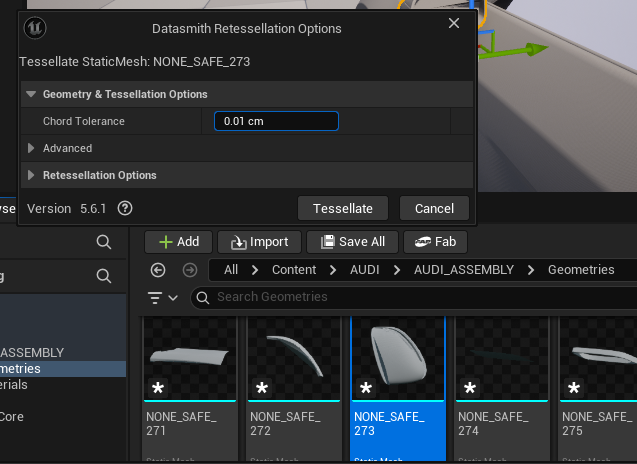
메시를 우클릭하면 이상이 있는 부품만 [Retessellation] 할 수도 있다.
Stitching Technique를 바꾸거나 Tolerance를 바꿔도 메시가 이상하게 형성되면 모델링 툴로 가져가서 수정하는 방법밖에는 없을 것 같다.

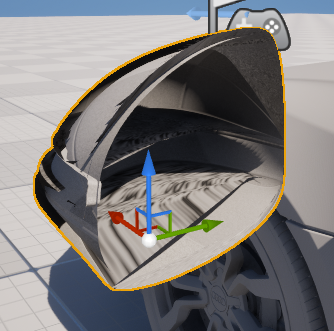
Blender에서 .obj, .stl을 열어도 퀄리티가 좋지 않았고, 메시가 뒤집혀 있는 것을 볼 수 있었다. FreeCAD 프로그램을 통해서 수정해본다. FreeCAD에서 glb로 export만 해도 나름 괜찮게 보인다.

커스텀 Tessellation을 위해서 FreeCAD의 워크벤치를 Mesh로 바꾸고 [Meshes] - [Mesh From Shape]으로 더 해상도 높게 메시화 후 [Meshes] - [Export Mesh...] 했지만 폴리곤 수가 10배 이상 많아지고 퀄리티는 비슷했다. → 기존 glb 모델 사용하는 것으로.

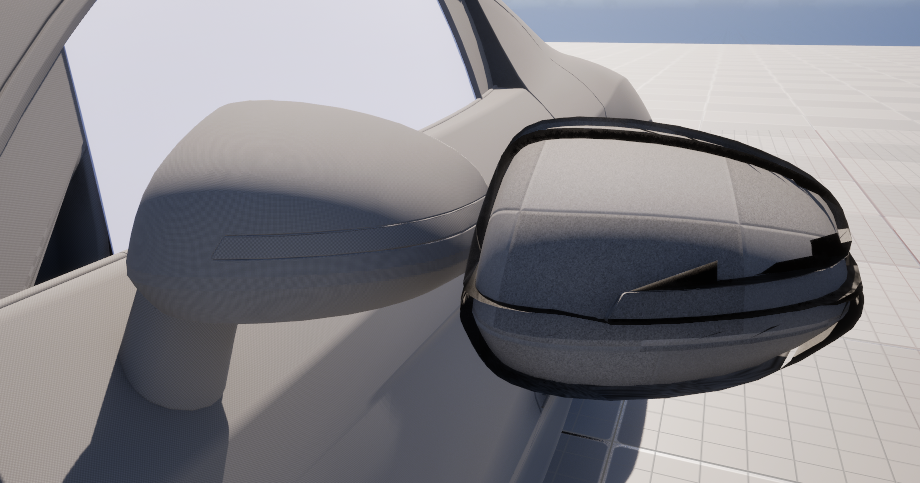
기존의 이상하게 Tessellation 된 사이드 미러를 대체하여 Origin도 맞춰서 넣었다.
차량의 Before 샷 완성

3. 메테리얼 적용
메테리얼을 하나 만들고, [Shading Model]은 [Clear Coat]로 설정한다.

메테리얼은 Unreal Fab에서 제공하는 Automotive Materials Pack을 사용하기로 한다.
https://dev.epicgames.com/documentation/unreal-engine/automotive-materials-pack-in-unreal-engine
Automotive Materials Pack in Unreal Engine | Unreal Engine 5.8 Documentation | Epic Developer Community
A breakdown of what assets the Automotive Materials pack contains and how to use them
dev.epicgames.com
https://www.fab.com/listings/5dd132fe-ee32-4e8c-9cd3-7496547dfb29
Automotive Materials
Automotive Materials is a collection of 164 high quality automotive-themed Materials and Textures which have been setup for use in Unreal Engine 4. The materials have been optimized to take advantage of techniques and features such as ray tracing and objec
www.fab.com
차량에 필요한 메테리얼 리스트가 잘 불러와졌고, 적용만 하면 된다.
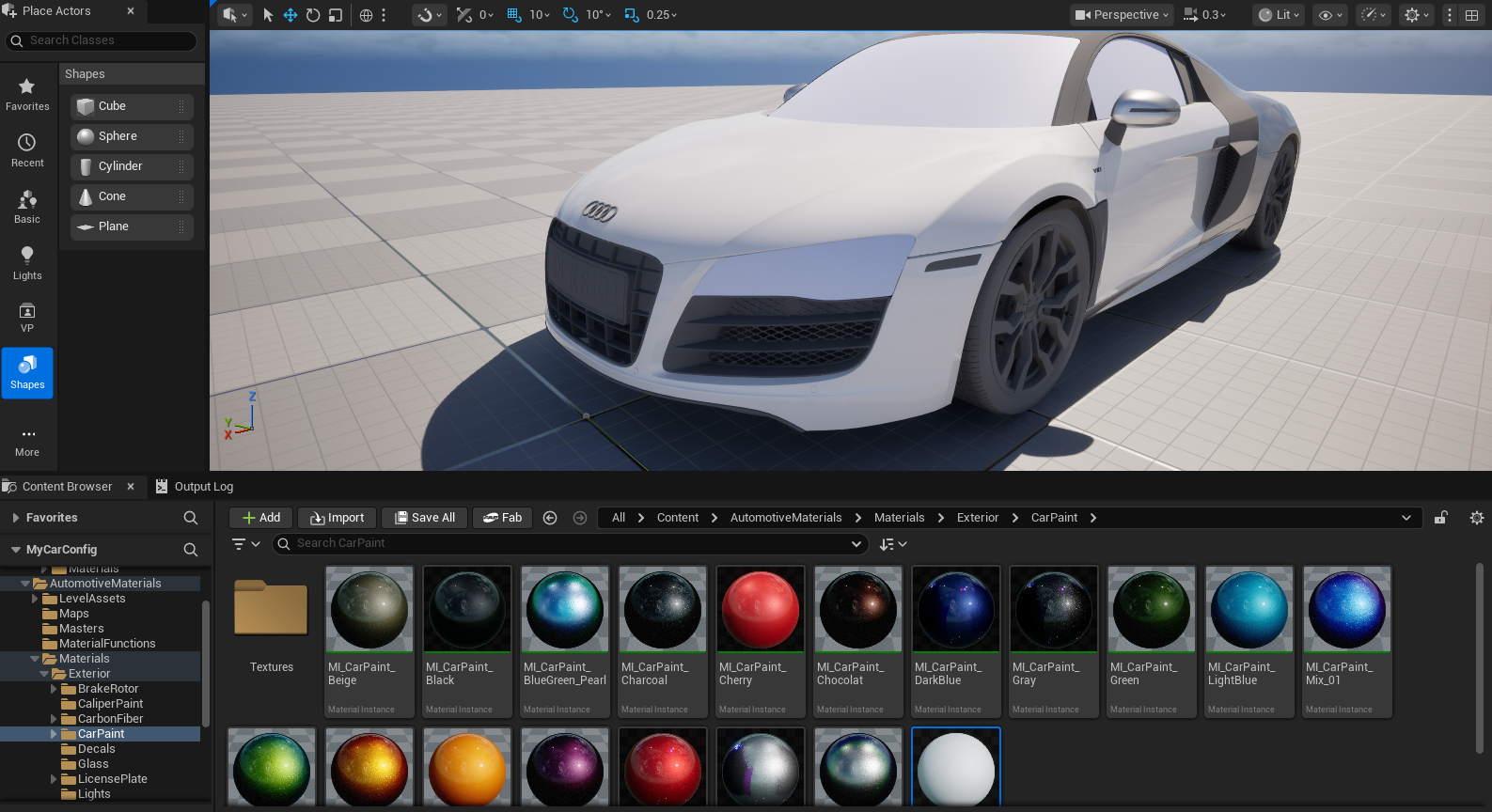
Exterior, Interior 모두 적용했다.
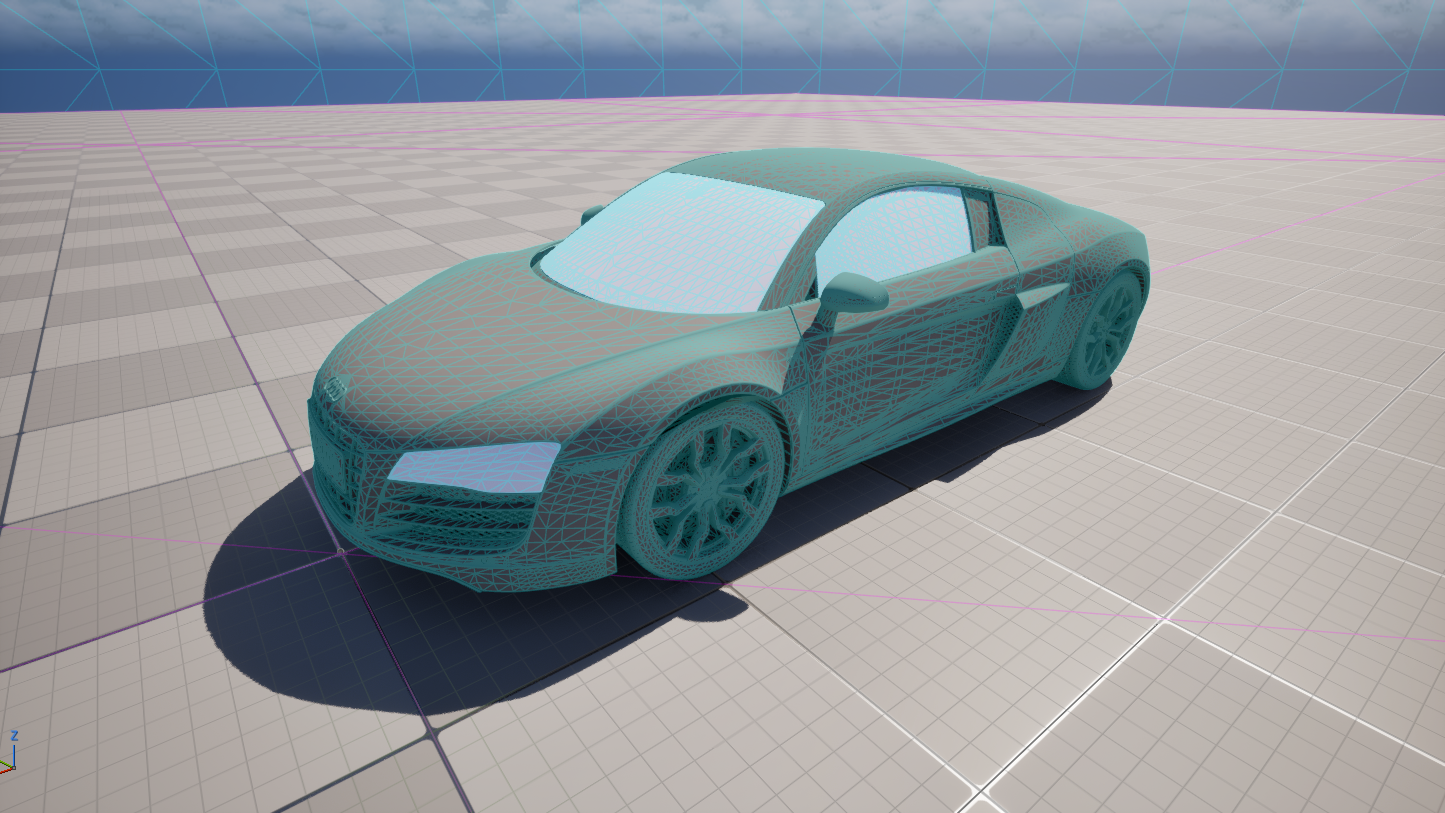

4. 라이팅 & 씬 구성
4-1 Lumen / Nanite 켜기
[Edit] - [Project Settings] - [Rendring]에서 두 옵션을 Lumen으로 설정한다. (이미 설정되어 있을 수 있음)

차량을 구성하는 메시들을 선택한 후 [마우스 우클릭] - [Nanite] - [Enable Nanite]로 설정하여 Nanite를 켠다.
*글래스는 Nanaite를 켜지 않는다.
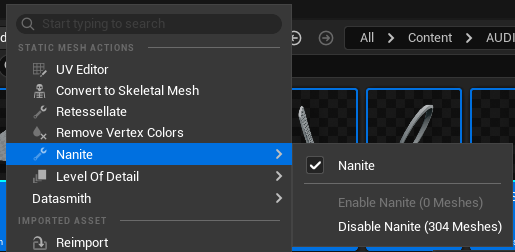
*Nanite가 켜진 메시는 Wireframe으로 볼 때 선이 두껍게 보인다.
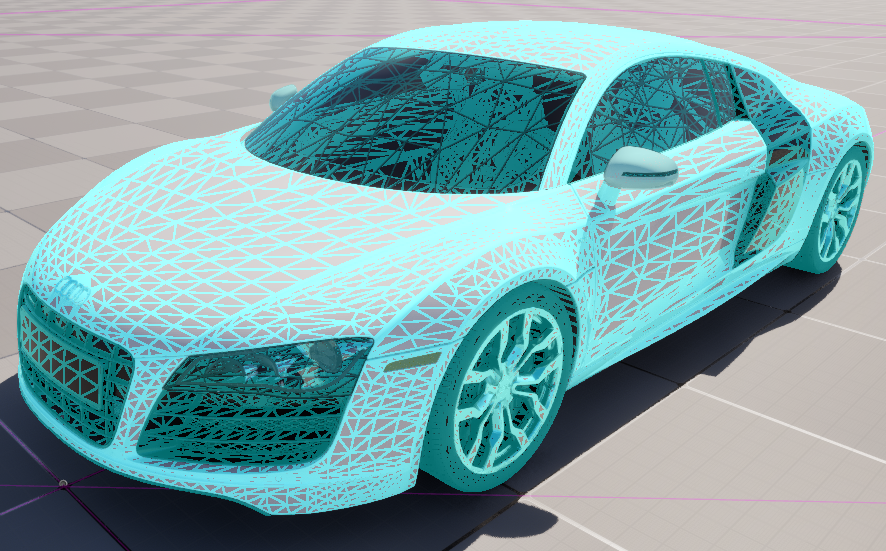
4-2 스튜디오 씬 구성
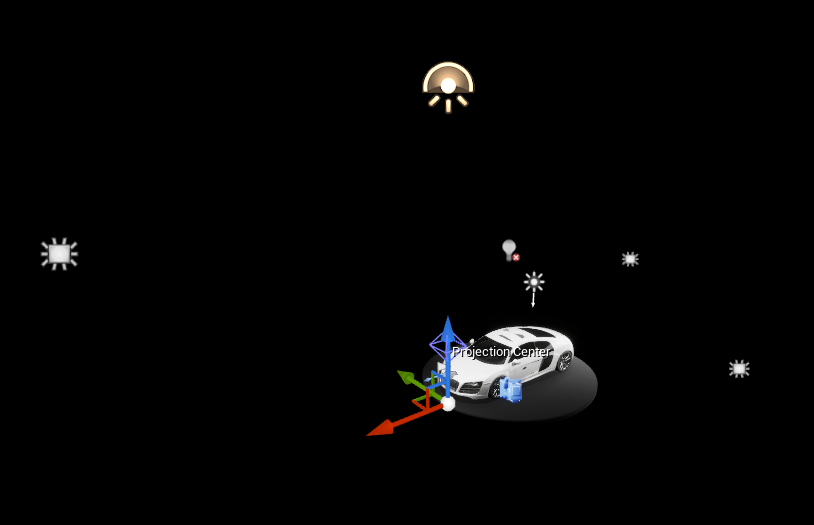
HDRI Backdrop으로 HDRI 하려다가 완전히 어둡게 하고 차량에 집중될 수 있도록 HDRI Intensity 0으로 바꾸고 하늘/환경 관련 액터 다 지웠다.
차량 앞쪽 위에는 Key Light로 가장 밝고 넓게 배치, 차량 뒤쪽 위에는 Fill Light로 적은 빛, 측면에서는 긴 직사각형 형태의 Edge Light, 위에서도 마찬가지로 긴 직사각형 형태의 Top Strip Light를 부여했다. 추가로 Directional Light를 하나 넣어서 선명한 그림자와 색감을 추가했다.
언리얼 5.6 버전에서는 Experimental이지만 MegaLights도 적용할 수 있다.
[Edit] - [Project Settings] - [Rendring]에 MegaLights를 검색하여 기능을 켠다.
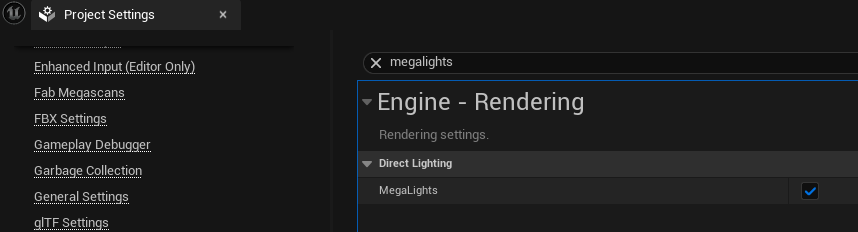
*5.6 버전에서는 실험적이라 불안정할 수 있으나 이후 5.8 버전에서는 프로덕션 레디로 출시되었다.
4-3 Post Process Volume
[Post Process Volume] 액터 추가 후 Infinite Extend 체크

[Details] 항목에서 Exposure, Bloom, Chromatic Aberration, Vignette 등을 켰다. 그리고 [Metering Mode] - [Manual]로 바꿔서 자동 밝기 조절이 아닌 실제 밝기로 적용했다.

여기까지 적용 모습. FOV 90도에서 35도로 변경

5. 블루프린트 인터랙션
5-1 C++ 컴포넌트 생성 + 컴파일
[Tools] - [New C++ Class] - [Actor Component] 선택하고 "CarConfiguratorComponent"로 액터 컴포넌트를 만들었다.

5-2 런타임 컬러 스왑 기능 생성
헤더 파일 작성
// Fill out your copyright notice in the Description page of Project Settings.

#pragma once

#include "CoreMinimal.h"
#include "Components/ActorComponent.h"
#include "CarConfiguratorComponent.generated.h"


UCLASS( ClassGroup=(Custom), meta=(BlueprintSpawnableComponent) )
class MYCARCONFIG_API UCarConfiguratorComponent : public UActorComponent
{
	GENERATED_BODY()

public:
	// Sets default values for this component's properties
	// 현재 차체에 적용된 carpaint 머티리얼 (이걸 쓰는 슬롯을 다 바꿈)
	UPROPERTY(EditAnywhere, BlueprintReadWrite, Category = "Configurator")
	UMaterialInterface* OriginalPaint;

	UPROPERTY(EditAnywhere, BlueprintReadWrite, Category = "Configurator")
	TArray<UMaterialInterface*> PaintMaterials;

	// 지금 칠해져 있는 머티리얼 (바꿀 때마다 갱신)
	UPROPERTY()
	UMaterialInterface* CurrentPaint;

	UFUNCTION(BlueprintCallable, Category = "Configurator")
	void SetPaintMaterial(int32 Index);

	UFUNCTION(BlueprintCallable, Category = "Configurator")
	void ResetPaint();

	UCarConfiguratorComponent();

protected:
	// Called when the game starts
	virtual void BeginPlay() override;

public:
	// Called every frame
	virtual void TickComponent(float DeltaTime, ELevelTick TickType, FActorComponentTickFunction* ThisTickFunction) override;


};
cpp 파일 작성
// Fill out your copyright notice in the Description page of Project Settings.


#include "CarConfiguratorComponent.h"
#include "Components/MeshComponent.h"
#include "Materials/MaterialInterface.h"
#include "Kismet/GameplayStatics.h"
#include "Engine/StaticMeshActor.h"
#include "Components/StaticMeshComponent.h"

// Sets default values for this component's properties
UCarConfiguratorComponent::UCarConfiguratorComponent()
{
	// Set this component to be initialized when the game starts, and to be ticked every frame.  You can turn these features
	// off to improve performance if you don't need them.
	PrimaryComponentTick.bCanEverTick = true;

	// ...
}


// Called when the game starts
void UCarConfiguratorComponent::BeginPlay()
{
	Super::BeginPlay();
	CurrentPaint = OriginalPaint;   // 시작 시 현재 = 원본
}


// Called every frame
void UCarConfiguratorComponent::TickComponent(float DeltaTime, ELevelTick TickType, FActorComponentTickFunction* ThisTickFunction)
{
	Super::TickComponent(DeltaTime, TickType, ThisTickFunction);

	// ...
}

void UCarConfiguratorComponent::SetPaintMaterial(int32 Index)
{
	if (!PaintMaterials.IsValidIndex(Index) || !CurrentPaint) return;

	UMaterialInterface* NewMat = PaintMaterials[Index];

	TArray<AActor*> Found;
	UGameplayStatics::GetAllActorsOfClass(GetWorld(), AStaticMeshActor::StaticClass(), Found);

	for (AActor* Actor : Found)
	{
		UStaticMeshComponent* Comp = Actor->FindComponentByClass<UStaticMeshComponent>();
		if (!Comp) continue;

		int32 NumMats = Comp->GetNumMaterials();
		for (int32 i = 0; i < NumMats; i++)
		{
			// 원본이 아니라 "현재 칠해진 것"을 기준으로 찾음
			if (Comp->GetMaterial(i) == CurrentPaint)
			{
				Comp->SetMaterial(i, NewMat);
			}
		}
	}

	CurrentPaint = NewMat;   // 현재 머티리얼 갱신
}

void UCarConfiguratorComponent::ResetPaint()
{
	if (!CurrentPaint || !OriginalPaint) return;

	TArray<AActor*> Found;
	UGameplayStatics::GetAllActorsOfClass(GetWorld(), AStaticMeshActor::StaticClass(), Found);

	for (AActor* Actor : Found)
	{
		UStaticMeshComponent* Comp = Actor->FindComponentByClass<UStaticMeshComponent>();
		if (!Comp) continue;

		int32 NumMats = Comp->GetNumMaterials();
		for (int32 i = 0; i < NumMats; i++)
		{
			if (Comp->GetMaterial(i) == CurrentPaint)
			{
				Comp->SetMaterial(i, OriginalPaint);
			}
		}
	}

	CurrentPaint = OriginalPaint;   // 현재를 원본으로 되돌림
}- OriginalPaint = 지금 차체에 입혀진 carpaint 머티리얼을 여기 지정
- 함수 호출하면 → 레벨 전체 메시 훑어서 → carpaint 쓰는 슬롯만 골라서 새 색으로 교체
- 200개 액터든 메시 한 개도 등록 안 하고, carpaint 쓰는 부분만 정확히 바뀜
- CurrentPaint를 매번 갱신해서 지금 칠해진 색 기준으로 변경.
Ctrl+Alt+F11 단축키를 눌러 Live Coding에서 succeeded가 뜨면 성공.
5-3 컴포넌트 연결
Outliner에서 아무 액터에 CarConfigurator 컴포넌트 추가하고, 현재 메테리얼과 바꾸고 싶은 메테리얼을 추가한다.
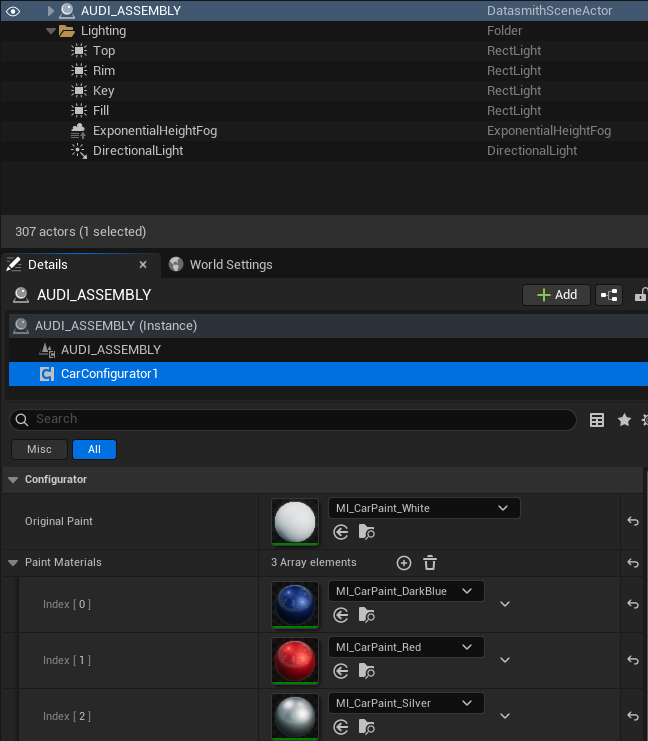
테스트를 위해서 [Open Level Blueprint]를 연다.

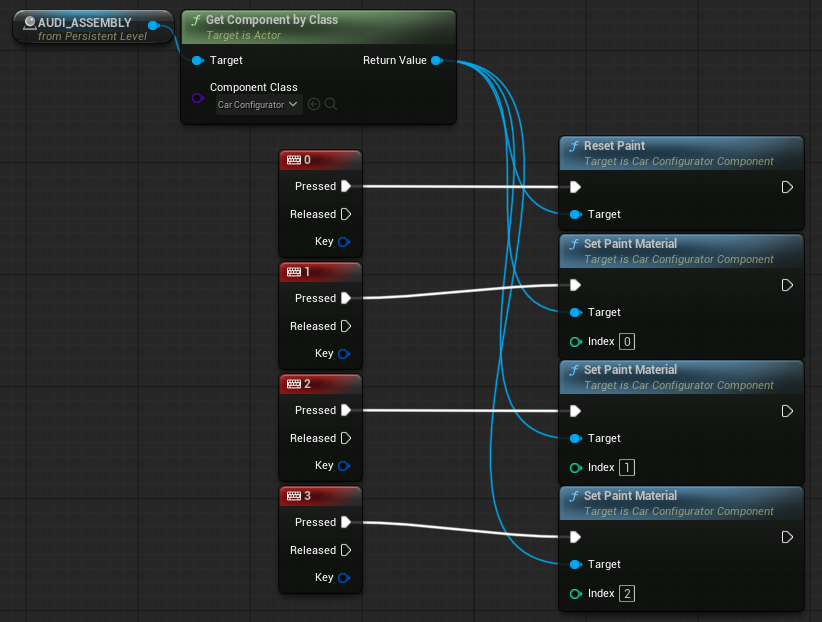
컴포넌트가 들어있는 액터를 선택한 후 EventGraph로 넘어와서 참조하고, 해당 컴포넌트 클래스를 아래와 같이 연결하여 변경한다. 0을 누르면 오리지널 색상이, 1을 누르면 0번 인덱스 색상이 적용된다.

5-4 UI로 구현
위젯 생성 + 변수 만들기
Content Browser에서 우클릭한 후 [User Interface] - [Widget Blueprint]로 "WBP_Configurator"를 생성한다.
위젯의 Designer 탭에서 Canvas Panel, Vertical Box를 배치한 후 버튼과 텍스트를 추가했다.

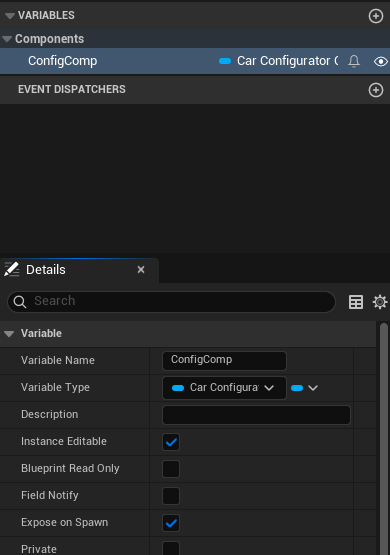
Graph 탭으로 넘어가서, ConfigComp 이름의 Variable을 하나 추가했고, Variable Type은 CarConfiguratorComponent - Object Reference로 설정했다. 중요한 부분은, 아래에 [Instance Editable]과 [Expose on Spawn]을 체크해야 한다는 점.
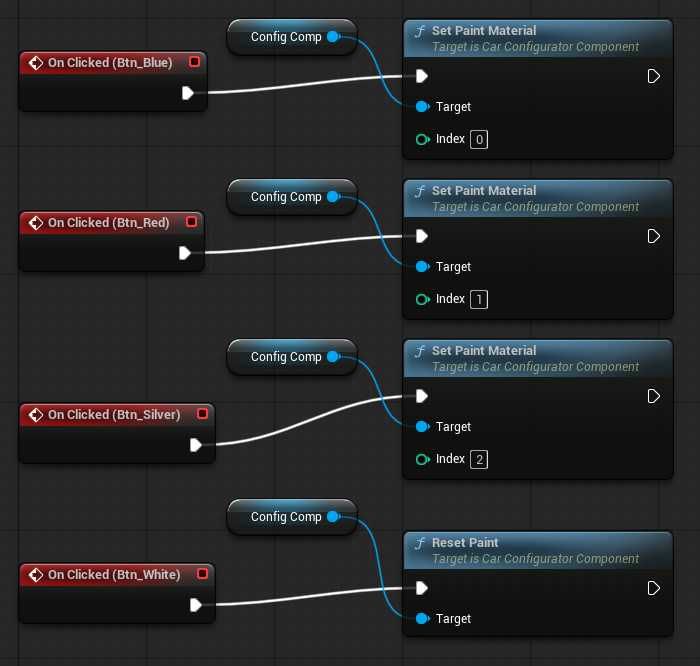
버튼 OnClicked 연결
다시 Designer로 넘어와서 Details 맨 위에 [Is Variable] 체크.

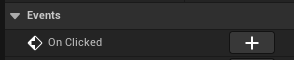
Details 맨 아래에 [Events] - [On Clicked] 옆 + 버튼을 눌러 Graph에 노드 추가.
Variables의 ConfigComp는 끌어다가 Get으로 가져오고 Set Paint 노드에 연결.
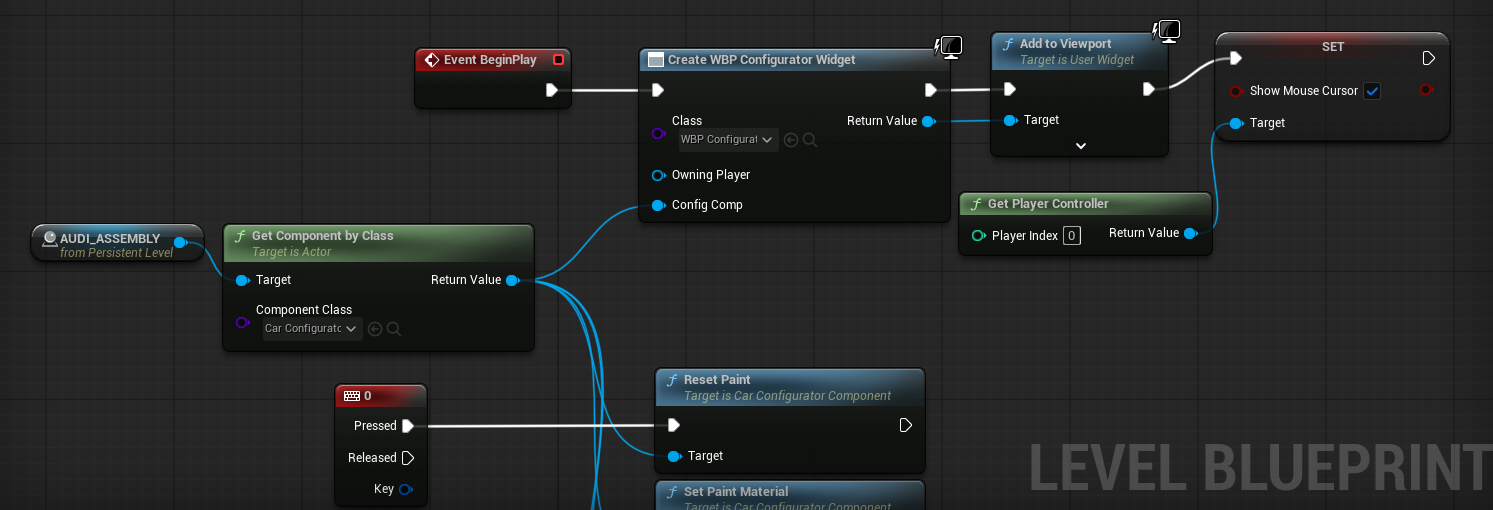
Level Blueprint에서 위젯 띄우기
BeginPlay에 아래 캡쳐와 같이 연결한다.
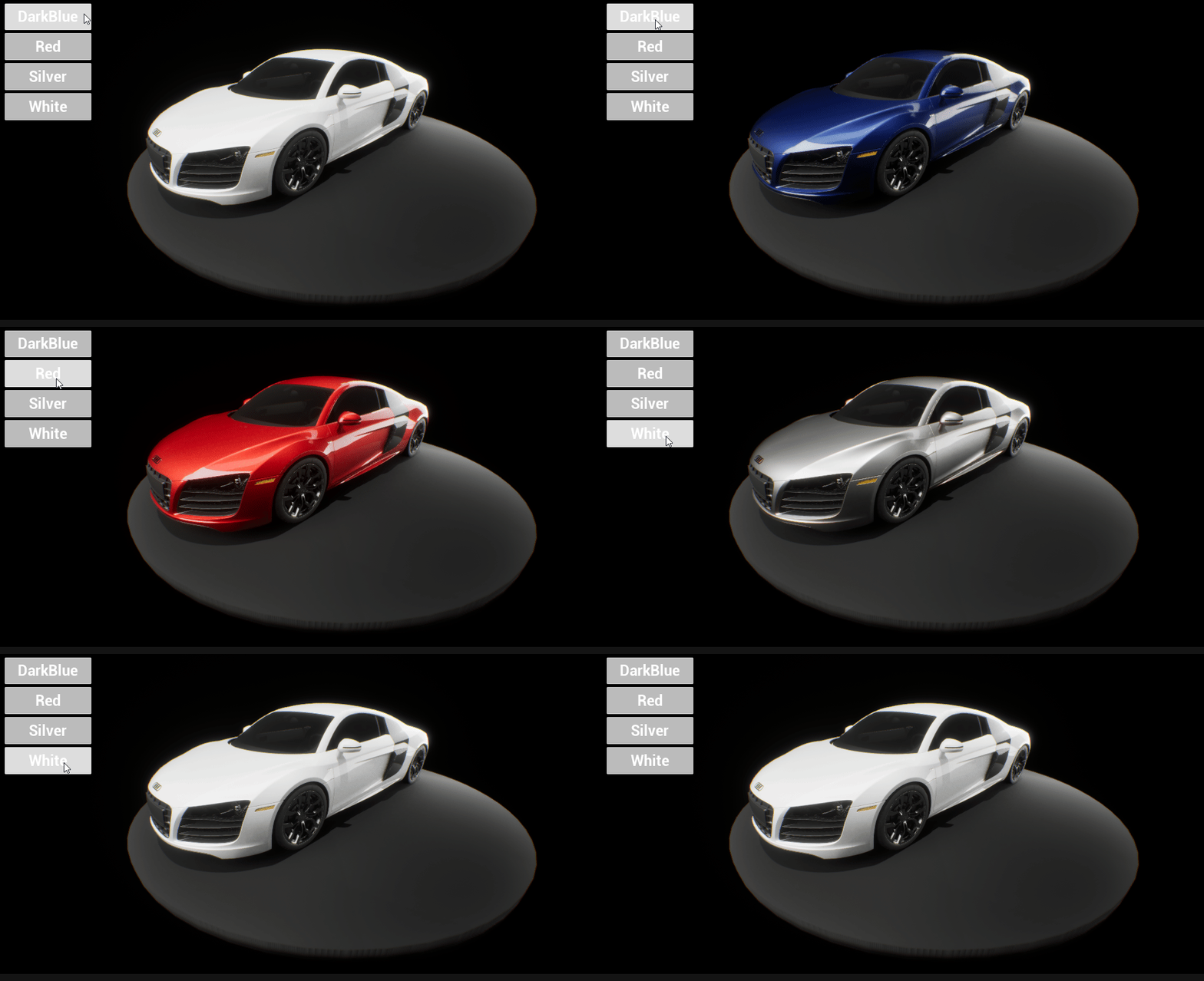
버튼 눌러서 잘 되는 것 확인.
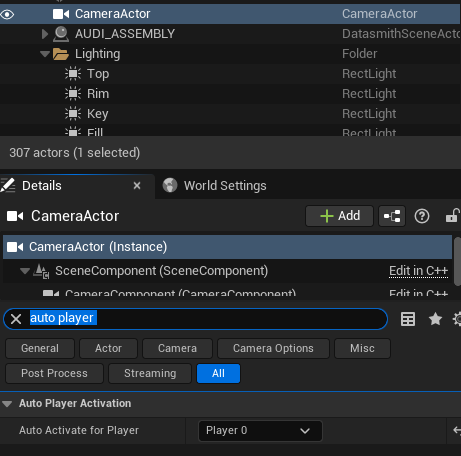
실행 시 미리 설정해둔 카메라 뷰로 보는 방법
카메라를 선택한 후 Details에서 [Auto Activate for Player] - [Player 0]으로 설정한다.
추가로, Stage위에 올라간 차량이 회전하도록 만들고 싶다. 기능을 추가한다.
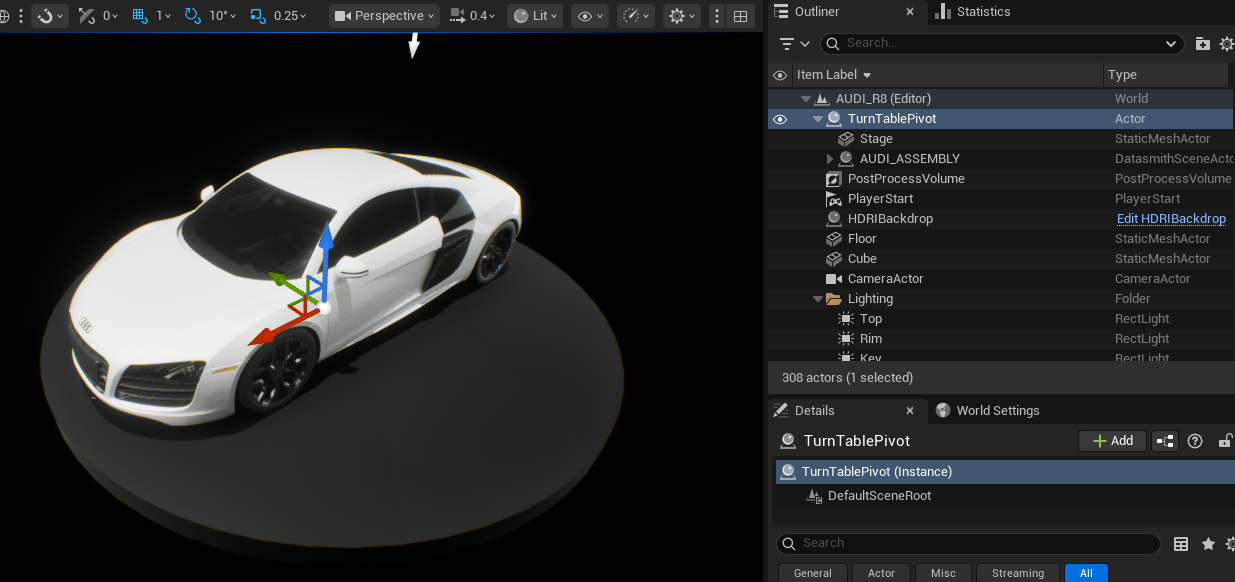
빈 액터를 하나 만들어서 가운데에 위치하게 둔 다음 Stage와 차량이 Children으로 위치하도록 한다.
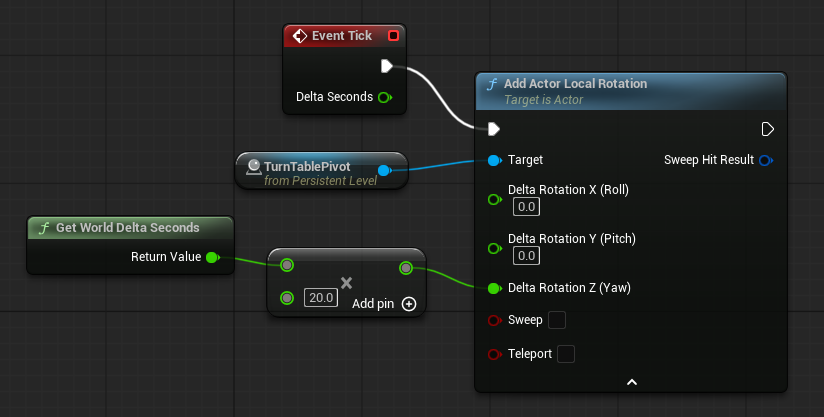
회전은 Level BP에서 Yaw 방향에 시간*각도로 부여한다.

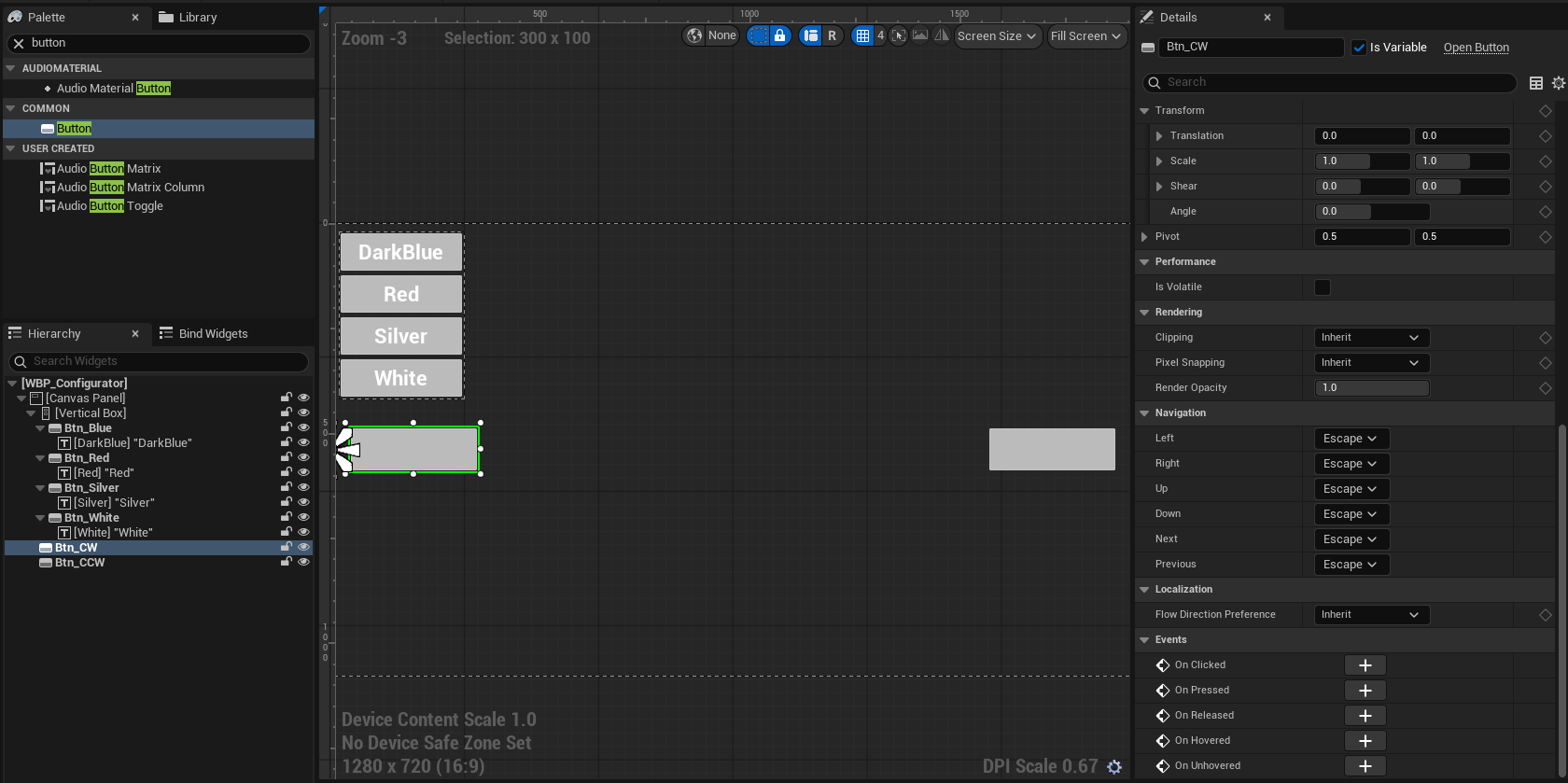
차량 좌/우에 버튼을 놓고 회전 방향 바꾸기
Level BP를 열어서 "RotateSpeed" 이름의 Float 형 변수를 추가한 후 Value는 20으로 둔다. Delta Seconds와 만든 변수를 곱한다.

Designer에서 좌/우에 버튼 배치 후 [Is Variable] 체크, 두 버튼 모두 OnClicked 이벤트 생성
그런데 이렇게 되면 RotateSpeed 변수는 Level BP에 위치하고, 버튼은 WBP 위젯에 있다. 그래서 함수를 C++에 두는 게 낫다. 단순하게는 CarConfiguratorComponent에 방향 함수를 추가한다. 이미 위젯이 CofigComp를 참고하고 있기 때문.
CarConfiguratorComponent.h 파일 수정
UPROPERTY(BlueprintReadWrite, Category="Configurator")
float RotateDir = 1.0f;   // 1=시계, -1=반시계

UFUNCTION(BlueprintCallable, Category="Configurator")
void SetRotateDir(float Dir) { RotateDir = Dir; }
방향 변수를 추가한다. 수정 후 컴파일.
전체코드
// Fill out your copyright notice in the Description page of Project Settings.

#pragma once

#include "CoreMinimal.h"
#include "Components/ActorComponent.h"
#include "CarConfiguratorComponent.generated.h"


UCLASS( ClassGroup=(Custom), meta=(BlueprintSpawnableComponent) )
class MYCARCONFIG_API UCarConfiguratorComponent : public UActorComponent
{
	GENERATED_BODY()

public:
	// Sets default values for this component's properties
	// 현재 차체에 적용된 carpaint 머티리얼 (이걸 쓰는 슬롯을 다 바꿈)
	UPROPERTY(EditAnywhere, BlueprintReadWrite, Category = "Configurator")
	UMaterialInterface* OriginalPaint;

	UPROPERTY(EditAnywhere, BlueprintReadWrite, Category = "Configurator")
	TArray<UMaterialInterface*> PaintMaterials;

	// 지금 칠해져 있는 머티리얼 (바꿀 때마다 갱신)
	UPROPERTY()
	UMaterialInterface* CurrentPaint;

	UFUNCTION(BlueprintCallable, Category = "Configurator")
	void SetPaintMaterial(int32 Index);

	UFUNCTION(BlueprintCallable, Category = "Configurator")
	void ResetPaint();

	UCarConfiguratorComponent();

	UPROPERTY(BlueprintReadWrite, Category = "Configurator")
	float RotateDir = 1.0f;   // 1=시계, -1=반시계

	UFUNCTION(BlueprintCallable, Category = "Configurator")
	void SetRotateDir(float Dir) { RotateDir = Dir; }

protected:
	// Called when the game starts
	virtual void BeginPlay() override;

public:
	// Called every frame
	virtual void TickComponent(float DeltaTime, ELevelTick TickType, FActorComponentTickFunction* ThisTickFunction) override;


};
Level BP에서 Delta Seconds와 Rotate Speed를 곱한 값에 Rotate Dir 변수를 가져와서 한 번 더 곱한다.

이후 WBP 위젯에서 버튼을 눌렀을 때 값을 지정한다.
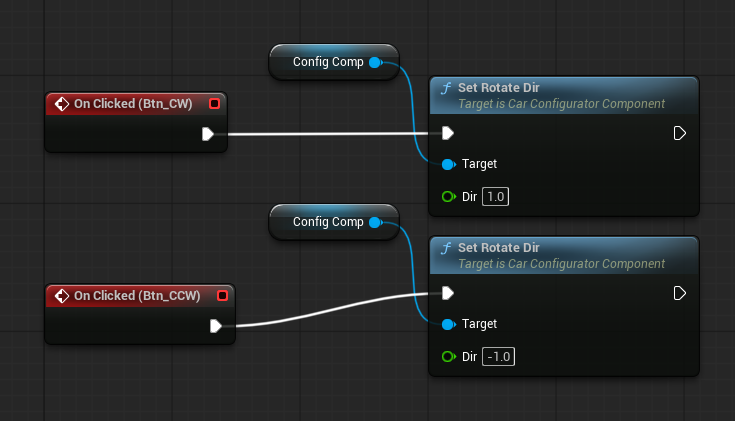
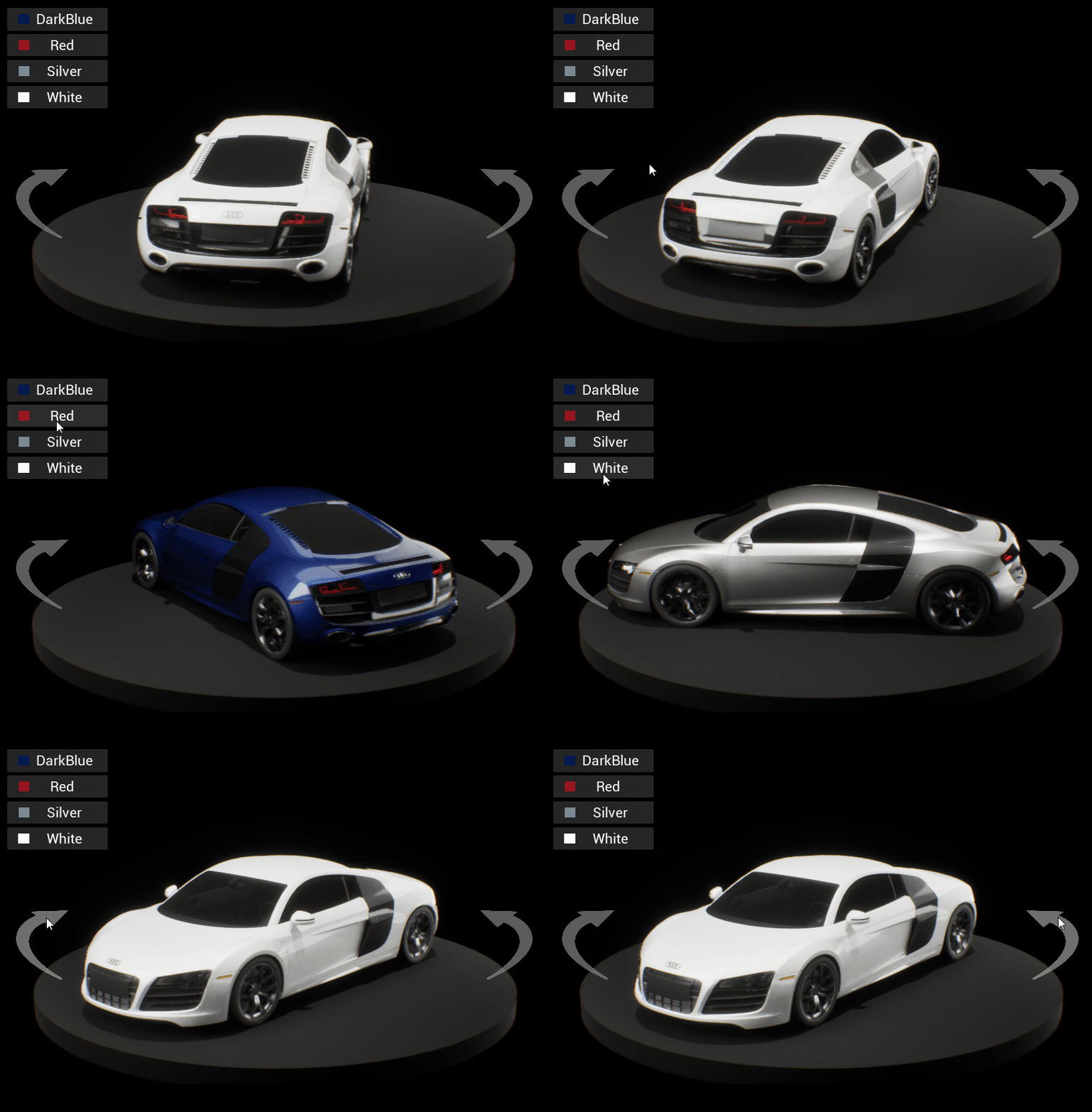
여기까지 색상 변경과 회전 방향 설정 완료.
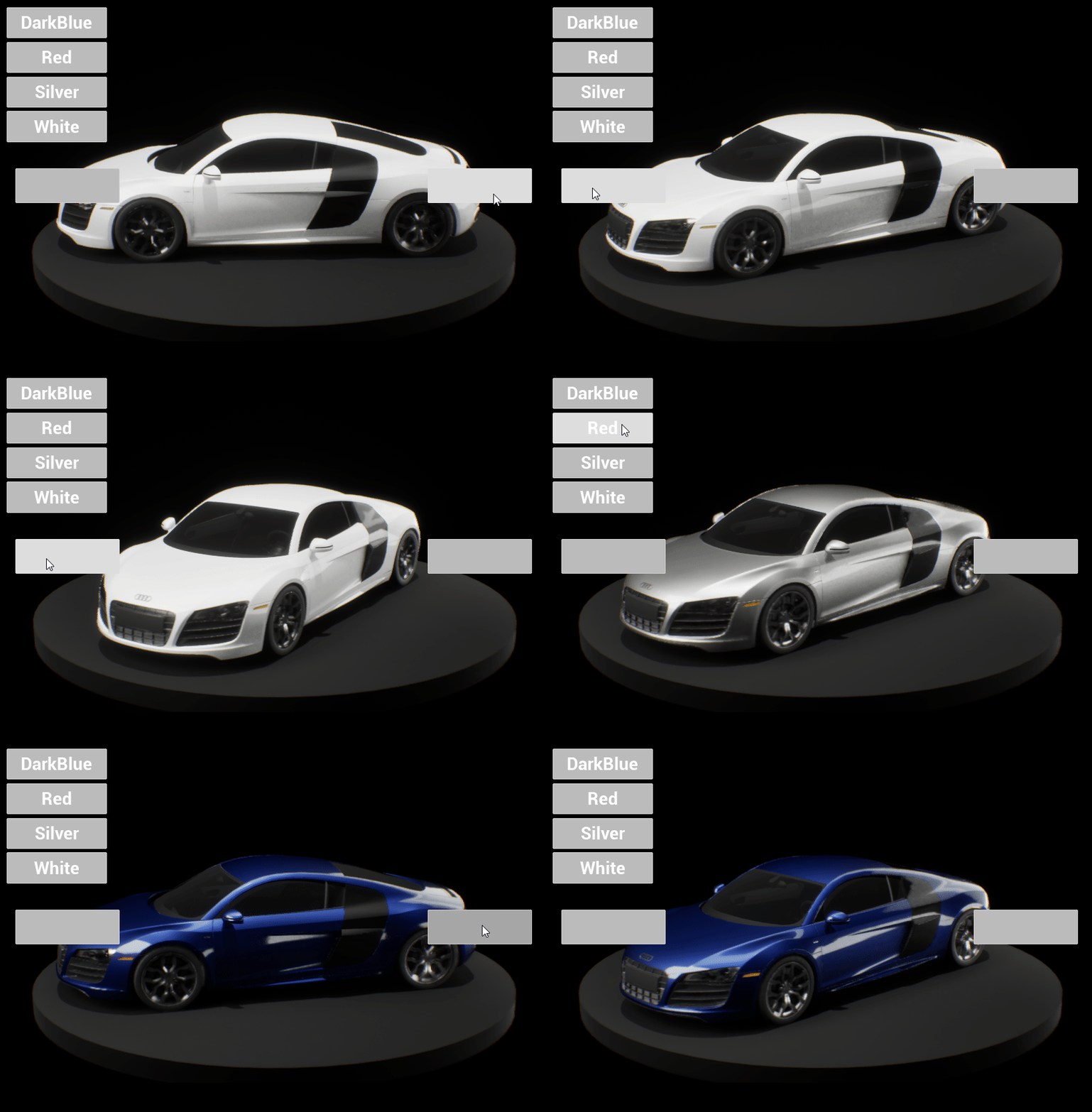
최종적으로 UI를 손봐서 완성했다.
'Unreal Engine > 언리얼 etc' 카테고리의 다른 글
| 새로운 메타버스 월드 "칼리버스(CALIVERSE)" 후기 (0) | 2024.09.06 |
|---|
